
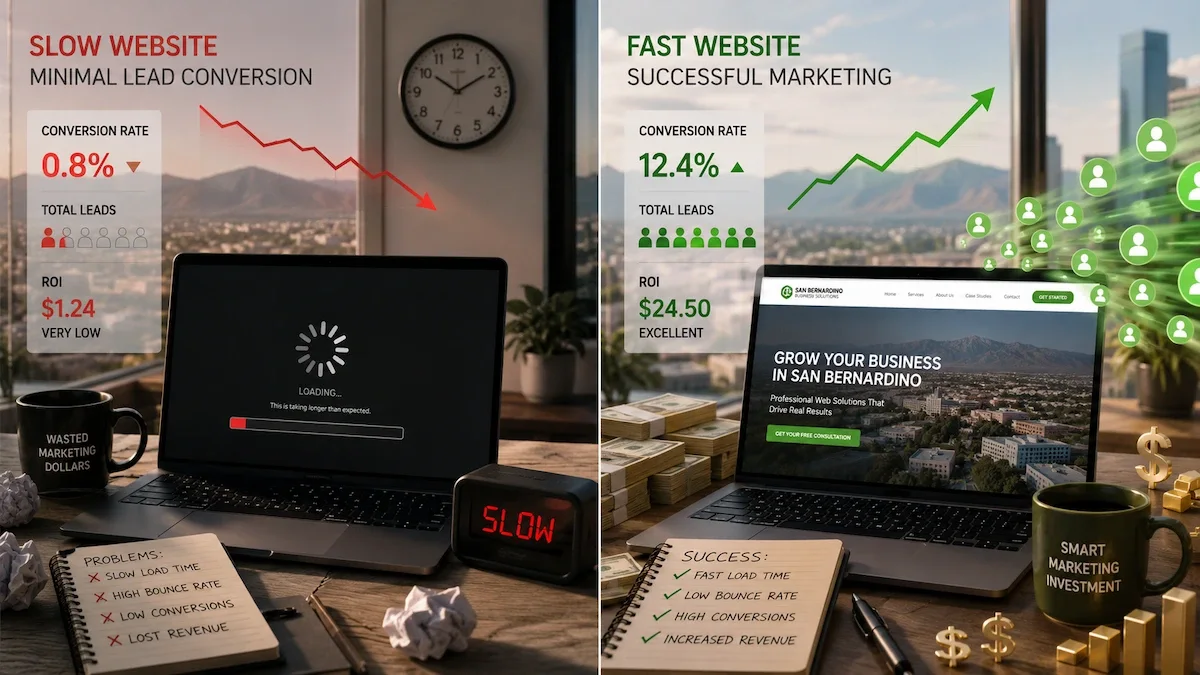
That spinning wheel isn't just annoying your visitors, it's costing you money and burying you in search results.
You've probably experienced it yourself: you click on a website, wait... wait... and eventually give up and hit the back button. Now imagine that's happening to your potential customers, dozens of times a day, every single day.
For businesses in Riverside, San Bernardino, Corona, and across the Inland Empire, a slow website isn't just a minor inconvenience. It's a silent revenue killer that's actively pushing customers to your competitors and telling Google your site doesn't deserve to rank.
In this guide, we'll break down exactly why your website loads slowly, how it's damaging your Google rankings, and,most importantly, what you can do to fix it.
The Speed Crisis: Why This Matters More Than Ever
Let's start with some numbers that should make every Inland Empire business owner pay attention:
The User Experience Reality
Load Time | Bounce Rate Increase |
|---|---|
1-3 seconds | Baseline |
3-5 seconds | +32% |
5-10 seconds | +90% |
10+ seconds | +123% |
Translation: If your site takes 5 seconds to load instead of 2, you're losing nearly a third of your visitors before they see anything.
The Google Reality
In 2021, Google made page speed a direct ranking factor through Core Web Vitals. In 2026, this isn't optional, it's mandatory for competitive rankings.
Google's message is clear: slow websites provide poor user experiences, and poor user experiences don't deserve top rankings.
The Revenue Reality
Every 1-second delay in page load time reduces conversions by 7%
A 2-second delay in load time increases bounce rates by 103%
47% of consumers expect a web page to load in 2 seconds or less
For a Riverside contractor getting 1,000 website visitors per month with a 3% conversion rate, that's 30 leads. If slow speed cuts that by 7%, you're losing 2 leads per month, potentially $2,000-$10,000 in lost revenue depending on your average job value.
What's Actually Slowing Down Your Website?
Before you can fix the problem, you need to understand what's causing it. Here are the most common culprits we see with Inland Empire business websites:
1. Oversized Images (The #1 Culprit)
The Problem:
That beautiful hero image on your homepage? It might be 4MB when it should be 200KB. Your phone takes photos at 4000x3000 pixels, but your website only displays them at 800x600. You're forcing visitors to download massive files they'll never see at full resolution.
How It Happens:
Uploading photos directly from your phone or camera
Using stock images without optimizing them
Not specifying image dimensions in your code
Using PNG format when JPEG would work fine
No lazy loading (images load even when not visible)
The Impact:
A single unoptimized image can add 3-5 seconds to your load time. Most business websites have 10-20 images. Do the math.
Real Example:
A restaurant in Redlands had a menu page with 15 food photos, each one 3-4MB straight from their photographer. Total page weight: 52MB. Load time on mobile: 23 seconds. After optimization: 1.8MB total, 2.4-second load time.
2. Too Many Plugins (WordPress Bloat)
The Problem:
Every WordPress plugin adds code that must be loaded on every page visit. Some plugins are well-coded and lightweight. Others are bloated nightmares that add seconds to your load time.
Common Offenders:
Social media feed plugins (loading external content)
Slider/carousel plugins (heavy JavaScript)
Page builder plugins (massive CSS/JS files)
Analytics plugins (multiple tracking scripts)
Security plugins (some are very heavy)
Abandoned plugins (still loading but not used)
The Impact:
We regularly see WordPress sites with 30-50 plugins installed. Deactivating unnecessary plugins often cuts load time by 40-60%.
Real Example:
A Hemet law firm had 47 plugins installed. Only 12 were actually being used. Removing the unused plugins and replacing 3 heavy plugins with lighter alternatives reduced load time from 8.2 seconds to 2.9 seconds.
3. Cheap or Overcrowded Hosting
The Problem:
Budget hosting ($3-10/month) means your website shares server resources with hundreds or thousands of other sites. When those sites get traffic, your site slows down. When the server is busy, everyone waits.
Signs of Hosting Problems:
Site is fast sometimes, slow other times (inconsistent)
Slow especially during business hours
Time to First Byte (TTFB) over 600ms
Hosting company is one you've never heard of
You're paying less than $20/month
The Impact:
No amount of optimization can overcome a slow server. If your server takes 2 seconds to respond before it even starts sending your page, you're already behind.
Real Example:
A Banning retail business was on $4.99/month hosting. Their Time to First Byte averaged 2.3 seconds, before any content even started loading. Moving to quality managed hosting ($30/month) dropped TTFB to 180ms. Total load time went from 9 seconds to 2.8 seconds.
4. No Caching Strategy
The Problem:
Without caching, your server rebuilds every page from scratch for every visitor. It queries the database, assembles the HTML, processes the PHP, all for content that hasn't changed since the last visitor 30 seconds ago.
Types of Caching You Need:
Cache Type | What It Does |
|---|---|
Browser Caching | Stores files on visitor's device for return visits |
Page Caching | Saves complete HTML pages to serve instantly |
Object Caching | Stores database query results |
CDN Caching | Stores files on servers worldwide for faster delivery |
The Impact:
Proper caching can reduce load times by 50-80% for repeat visitors and significantly reduce server load for everyone.
5. Render-Blocking Resources
The Problem:
Your website loads resources in a specific order. If CSS and JavaScript files block the page from rendering until they're fully loaded, visitors stare at a blank screen waiting.
What This Looks Like:
White screen for several seconds before content appears
Content appears, then jumps around as styles load
Page seems loaded but buttons don't work yet
Technical Explanation:
When a browser encounters a CSS or JavaScript file, it often stops rendering the page until that file is downloaded and processed. If you have 10 render-blocking resources, the browser stops 10 times.
The Impact:
Render-blocking resources are a primary cause of poor Core Web Vitals scores, directly affecting your Google rankings.
6. No Content Delivery Network (CDN)
The Problem:
Your website is hosted on a server somewhere, let's say Phoenix. When someone in San Bernardino visits your site, the data travels from Phoenix to San Bernardino. When someone in New York visits, the data travels across the entire country.
How a CDN Helps:
A CDN stores copies of your website on servers worldwide. When someone visits, they get the copy from the nearest server,maybe Los Angeles instead of Phoenix. The shorter distance means faster delivery.
The Impact:
CDNs typically reduce load times by 20-50%, with the biggest improvements for visitors far from your hosting server.
7. Unoptimized Database
The Problem:
WordPress stores everything in a database: posts, pages, comments, settings, plugin data, revisions, and more. Over time, this database accumulates junk, spam comments, post revisions, expired transients, orphaned data from deleted plugins.
Signs of Database Bloat:
Site was fast when new, slow now
Admin dashboard is sluggish
Database size over 100MB for a simple site
Hundreds of post revisions stored
The Impact:
A bloated database means slower queries, which means slower page generation. We've seen database optimization alone cut load times by 30-40%.
8. External Scripts and Embeds
The Problem:
Every external resource your site loads,Google Analytics, Facebook Pixel, YouTube videos, Google Maps, chat widgets, font libraries, requires a separate connection to an external server. You can't control how fast those servers respond.
Common External Resources:
Analytics tracking (Google Analytics, Facebook Pixel, etc.)
Embedded videos (YouTube, Vimeo)
Social media feeds
Google Maps
Chat widgets
External fonts (Google Fonts)
Advertising scripts
Third-party reviews widgets
The Impact:
Each external resource adds latency. A slow third-party server can hold up your entire page. We've seen chat widgets alone add 2-3 seconds to load times.
How Slow Speed Destroys Your Google Rankings
Now let's talk about the SEO damage. Google has made it crystal clear: page speed affects rankings. Here's how:
Core Web Vitals: Google's Speed Report Card
Google measures your site's performance using three Core Web Vitals:
1. Largest Contentful Paint (LCP)
What It Measures: How long until the main content is visible
Target: Under 2.5 seconds
What Hurts LCP:
Large images
Slow server response
Render-blocking resources
Client-side rendering
2. First Input Delay (FID) / Interaction to Next Paint (INP)
What It Measures: How quickly your site responds to user interaction
Target: Under 100 milliseconds (FID) / Under 200ms (INP)
What Hurts FID/INP:
Heavy JavaScript
Long-running tasks
Too many third-party scripts
Unoptimized event handlers
3. Cumulative Layout Shift (CLS)
What It Measures: How much the page layout shifts during loading
Target: Under 0.1
What Hurts CLS:
Images without dimensions
Ads that load late
Fonts that cause text to shift
Dynamic content insertion
The Ranking Impact
Google has confirmed that Core Web Vitals are a ranking factor. Sites that pass all three metrics get a ranking boost. Sites that fail get pushed down.
But here's what many business owners miss: In competitive local markets like Riverside and San Bernardino, small ranking differences matter enormously.
If you and your competitor offer similar services at similar prices, but their site loads in 2 seconds and yours loads in 6 seconds, they're getting the ranking boost and you're getting the penalty. Over time, they appear higher in search results, get more clicks, get more customers, and pull further ahead.
The Compound Effect
Slow speed doesn't just hurt rankings directly, it creates a negative feedback loop:
Slow site → Higher bounce rate (people leave quickly)
Higher bounce rate → Lower engagement signals (Google notices)
Lower engagement → Lower rankings (Google demotes you)
Lower rankings → Less traffic (fewer people find you)
Less traffic → Fewer conversions (less business)
Meanwhile, your faster competitors enjoy the opposite: better engagement, better rankings, more traffic, more business.
How to Check Your Website Speed
Before you can fix the problem, you need to measure it. Here are the tools to use:
Google PageSpeed Insights (Essential)
URL: pagespeed.web.dev
What It Tells You:
Performance score (0-100)
Core Web Vitals metrics
Specific issues to fix
Estimated savings from each fix
How to Use It:
Enter your website URL
Wait for the analysis (30-60 seconds)
Check BOTH mobile and desktop scores
Focus on mobile first (that's what Google uses for rankings)
Score Interpretation:
Score | Rating | What It Means |
|---|---|---|
90-100 | Good | Excellent performance |
50-89 | Needs Improvement | Noticeable issues |
0-49 | Poor | Serious problems |
GTmetrix (Detailed Analysis)
URL: gtmetrix.com
What It Tells You:
Detailed performance breakdown
Waterfall chart (shows what loads when)
Historical tracking
Comparison with other sites
Best For: Understanding exactly what's slowing you down
Google Search Console (Real-World Data)
URL: search.google.com/search-console
What It Tells You:
Core Web Vitals for your actual visitors
Which pages have problems
Mobile vs. desktop performance
Trends over time
Best For: Seeing how real users experience your site
WebPageTest (Advanced)
URL: webpagetest.org
What It Tells You:
Extremely detailed technical analysis
Test from different locations
Different connection speeds
Video of page loading
Best For: Deep technical troubleshooting
How to Fix Your Slow Website: Step-by-Step
Now for the actionable part. Here's how to speed up your website, organized from easiest to most technical:
Quick Wins (Do These First)
1. Optimize Your Images
Time Required: 1-2 hours Difficulty: Easy Impact: High (often 40-60% improvement)
Steps:
Install an image optimization plugin (ShortPixel, Imagify, or Smush)
Run bulk optimization on existing images
Enable automatic optimization for new uploads
Convert images to WebP format where supported
Enable lazy loading (images load as you scroll)
Target: No single image over 200KB. Total page images under 1MB.
2. Enable Caching
Time Required: 30 minutes Difficulty: Easy Impact: High (30-50% improvement for repeat visitors)
Steps:
Install a caching plugin (WP Rocket, W3 Total Cache, or LiteSpeed Cache)
Enable page caching
Enable browser caching
Set appropriate cache expiration times
Recommended Plugin: WP Rocket (paid but worth it) or LiteSpeed Cache (free, excellent)
3. Remove Unused Plugins
Time Required: 30-60 minutes Difficulty: Easy Impact: Medium to High
Steps:
Go to Plugins in WordPress
List all active plugins
For each one, ask: "Is this actually being used?"
Deactivate and delete unused plugins
Research lighter alternatives for heavy plugins
Common Plugins to Remove:
Hello Dolly (default, useless)
Jetpack (if you're only using 1-2 features)
Old backup plugins you've replaced
Multiple SEO plugins (you only need one)
Social sharing plugins you don't use
4. Update Everything
Time Required: 30 minutes Difficulty: Easy Impact: Medium
Steps:
Update WordPress core
Update all plugins
Update your theme
Check that nothing broke after updates
Why It Helps: Updates often include performance improvements and bug fixes.
Intermediate Fixes
5. Implement a CDN
Time Required: 1-2 hours Difficulty: Medium Impact: Medium to High (especially for visitors far from your server)
Options:
Cloudflare (free tier available, excellent)
BunnyCDN (affordable, fast)
StackPath (good for business sites)
Steps:
Sign up for CDN service
Add your website
Update DNS settings (CDN will guide you)
Configure caching rules
Test thoroughly
6. Optimize Your Database
Time Required: 30 minutes Difficulty: Medium Impact: Medium
Steps:
Install WP-Optimize or similar plugin
Clean up post revisions (keep last 3-5)
Remove spam and trashed comments
Delete expired transients
Optimize database tables
Schedule regular cleanups
7. Minify CSS and JavaScript
Time Required: 30 minutes (if using a plugin) Difficulty: Medium Impact: Medium
What It Does: Removes unnecessary characters (spaces, comments) from code files, making them smaller and faster to download.
Steps:
Use your caching plugin's minification feature, or
Install Autoptimize plugin
Enable CSS minification
Enable JavaScript minification
Test thoroughly (minification can sometimes break things)
Warning: Always test after enabling minification. Some themes and plugins don't play nice with minified code.
8. Defer Non-Critical JavaScript
Time Required: 1 hour Difficulty: Medium Impact: High (improves LCP significantly)
What It Does: Tells the browser to load JavaScript files after the main content is visible, rather than blocking rendering.
Steps:
Use WP Rocket's "Load JavaScript deferred" option, or
Use Autoptimize's defer option, or
Manually add defer attribute to script tags
Warning: Some JavaScript must load immediately (like analytics). Test carefully.
Advanced Fixes
9. Upgrade Your Hosting
Time Required: 2-4 hours (including migration) Difficulty: Medium-High Impact: High (if current hosting is the bottleneck)
Signs You Need Better Hosting:
TTFB consistently over 600ms
Site is slow even with all optimizations
Hosting costs less than $20/month
Shared hosting with unknown provider
Recommended Hosting for WordPress:
Cloudways (managed cloud hosting, excellent performance)
SiteGround (good balance of price and performance)
WP Engine (premium managed WordPress)
Kinsta (premium, Google Cloud infrastructure)
Budget: Plan for $25-50/month minimum for a business site that needs to perform.
10. Optimize Critical Rendering Path
Time Required: 2-4 hours Difficulty: High Impact: High (directly improves Core Web Vitals)
What It Involves:
Inlining critical CSS
Deferring non-critical CSS
Optimizing font loading
Preloading key resources
Steps:
Use a tool like Critical to generate critical CSS
Inline critical CSS in the <head>
Load remaining CSS asynchronously
Use font-display: swap for web fonts
Preload important resources with <link rel="preload">
Recommendation: This is complex. Consider hiring a professional or using a plugin like WP Rocket that handles much of this automatically.
11. Reduce Third-Party Scripts
Time Required: 1-2 hours Difficulty: Medium Impact: Medium to High
Steps:
Audit all external scripts loading on your site
Remove any you don't actually need
Delay non-essential scripts (load after page is interactive)
Self-host fonts instead of using Google Fonts
Use lightweight alternatives where possible
Example: Replace YouTube embeds with a lightweight facade that only loads the full player when clicked.
What Results Can You Expect?
When Inland Empire businesses implement these optimizations, here's what we typically see:
Performance Improvements
Starting Point | After Optimization |
|---|---|
8-12 second load time | 2-3 seconds |
PageSpeed score 20-40 | Score 70-90+ |
Failing Core Web Vitals | Passing all three |
High bounce rate | 20-40% reduction |
Business Impact
Within 1-2 Weeks:
Improved user experience
Lower bounce rates
Better engagement metrics
Within 1-3 Months:
Improved Google rankings
Increased organic traffic
Higher conversion rates
Long-Term:
Sustained competitive advantage
Compounding SEO benefits
Better ROI on all marketing efforts
Real Results from IE Businesses
HVAC Company in Redlands:
Before: 9.2 second load time, PageSpeed 28
After: 2.1 seconds, PageSpeed 91
Result: 34% increase in organic traffic over 3 months
Restaurant in Corona:
Before: 11 second load time, PageSpeed 19
After: 2.8 seconds, PageSpeed 84
Result: Online orders increased 28%
Law Firm in San Bernardino:
Before: 7.4 second load time, PageSpeed 35
After: 1.9 seconds, PageSpeed 94
Result: Contact form submissions up 41%
When to Call a Professional
Speed optimization can get technical quickly. Consider professional help if:
Your PageSpeed score is below 30
You've tried basic optimizations without improvement
Your site breaks when you enable minification or caching
You don't have time to learn the technical details
Speed is critical to your business (e-commerce, lead generation)
You need guaranteed results
What Professional Optimization Includes
A comprehensive speed optimization service should include:
Full Performance Audit: Identifying all issues
Image Optimization: Compression, resizing, format conversion
Caching Configuration: Page, browser, and object caching
CDN Setup: Global content delivery
Database Optimization: Cleanup and optimization
Code Optimization: Minification, deferral, critical CSS
Hosting Evaluation: Recommendations if needed
Core Web Vitals Optimization: Passing all three metrics
Testing and Verification: Ensuring nothing breaks
Documentation: What was done and how to maintain it
IE Web Services: Speed Optimization for Inland Empire Businesses
At IE Web Services, we've optimized hundreds of websites for businesses across Riverside, San Bernardino, Corona, Ontario, Temecula, and the entire Inland Empire.
Our Speed Optimization Service
What's Included:
✅ Comprehensive performance audit
✅ Image optimization (all existing images)
✅ Caching configuration
✅ CDN setup and configuration
✅ Database optimization
✅ Code minification and optimization
✅ Core Web Vitals optimization
✅ Render-blocking resource fixes
✅ Third-party script optimization
✅ Before/after performance report
Our Guarantee: We'll improve your PageSpeed score by at least 30 points, or we'll keep working until we do.
Ongoing Speed Management
Speed isn't a one-time fix. New content, plugin updates, and changing best practices mean ongoing attention is required.
Our Web CARE plans include:
Monthly performance monitoring
Automatic image optimization for new uploads
Regular database maintenance
Cache management
Core Web Vitals tracking
Proactive optimization as needed
Get Your Free Speed Analysis
Not sure how your website is performing? Let us check for you.
We'll provide:
Current PageSpeed scores (mobile and desktop)
Core Web Vitals assessment
Identification of top speed issues
Estimated improvement potential
Specific recommendations
No obligation. No pressure. Just actionable information.
Request Your Free Speed Analysis →
A fast website isn't a luxury, it's a competitive necessity. In the Inland Empire's competitive business landscape, speed can be the difference between winning and losing customers.
IE Web Services has been helping Inland Empire businesses succeed online for over 20 years. We understand that your website needs to perform, not just exist.